Sabtu, 13 Agustus 2011

Blackberry Torch 9860 dan Torch 9850

Blackberry Torch 9860 / 9850
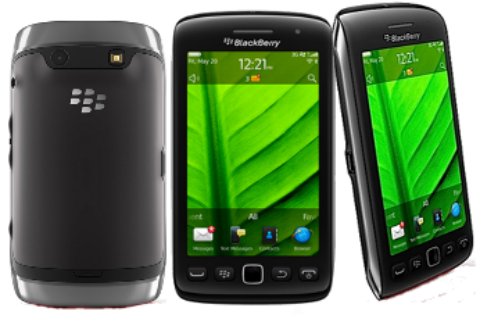


Spesifikasi BlackBerry Torch 9860 dan Torch 9850 :

Ukuran & Berat : 120mm x 62mm x 11.5mm, 135 grams

Prosessor : 1,2 Ghz (QC 8655)

Display : 3.7″ (800×480), 253 ppi, touch display powered by Liquid Graphics Technology

OS : BlackBerry OS 7

Network :  Torch 9850 (CDMA)
Dual-Band CDMA 2000 1x EV-DO Rev A support: 800/1900 MHz

Torch 9860 (GSM)
Quad-Band GSM/GPRS/EDGE support: 850/900/1800/1900 MHz
Single-Band UMTS support: 2100 MHz
Tri-Band UMTS/HSPA Networks: 2100/1900/850/800 MHz (UMTS Bands 1,2,5/6) 2100/1700/900 MHz (UMTS Bands 1,4,8)

Daya Tahan Baterai :   CDMA talk time: Up to 6.8 hours
                                       CDMA standby time: up to 13.4 days
                                       GSM talk time: 6.2 hours
                                       GSM standby time: 11.6 days
                                       UMTS talk time: up to 6.1 hours
                                       UMTS standby time: up to 11.8 days
                                       Audio playback time: up to 50.2 hours
                                       Video playback time: up to 6.6 hours

Memori : 768MB RAM memory; 4GB onboard, expandable up to 36GB via MicroSD

Kamera :    5MP camera, flash, continuous auto focus, image stabilization, 4x digital zoom                                              scene modes, 720p HD video recording

GPS : Autonomous and simultaneous GPS preloaded with BlackBerry Maps application

Wi-fi : 802.11 b/g/n enabled

Media : Video formats: .mp4, .m4a, .3gp, .m4v, .avi, .asf, .wmv
Audio formats: .mp4, .m4a, .3gp, .m4v, .avi, .asf, .wma, .mp3,.flac, .ogg,.aac, .amr,wav, .mid,.qcp
Picture formats: .bmp, .jpg, .gif, .png, .tif, .wbmp

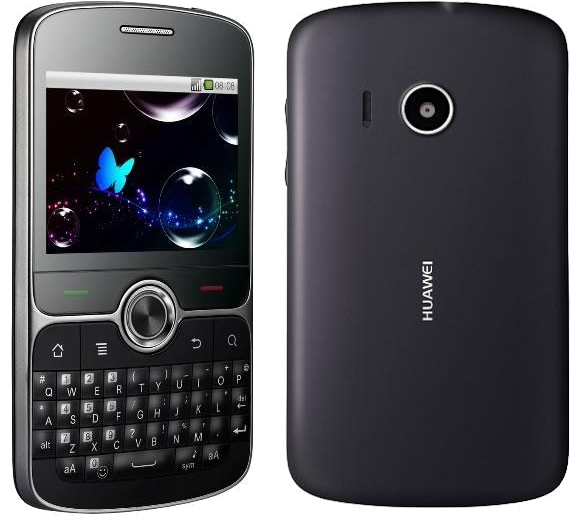
Huawei Boulder U8350

 Huawei Boulder U8350


General
2G NetworkGSM 850 / 900 / 1800 / 1900
3G NetworkHSDPA 900 / 2100
AnnouncedJanuary 2011
Size
Dimensions115 × 62.8 × 9.9 mm
Weight122 g
Display
Type262k colors, TFT, capacitive Touch Lens
Size2.6”, QVGA - - Accelerometer sensor for auto-rotate - Touch-sensitive controls
Sound
Alert TypeVibration, MP3 ringtones
SpeakerphoneYes, with stereo speakers - 3.5 mm audio jack
Memory
PhonebooksPractically unlimited entries and fields, Photocal
Call RecordsPractically unlimited
InternalROM 512MB,RAM 256MB
Call SlotsmicroSD, up to 32GB
Data
GPRSYes
EDGEYes
3GYes
WLANWi-Fi 802.11 b/g/n, Wi-Fi hotspot
BluetoothYes v2.1 with A2DP
Infrared PortNo
USBYes, microUSB v2.0
Camera
Primary3.2MP FF (Fixed Focus)
FeaturesDigital Zoom, LED Flash
VideoYes, 320 x 240 pixel
Features
OSAndroid 2.2 (Froyo)
CPUQualcomm® MSM7225-1, 528MHz
MessagingSMS(threaded view), MMS, Email, Push Mail, IM
BrowserHTML
RadioNo
GamesYes
ColorsBlack, White
GPSYes
Battery
PrimaryStandard battery, Li-Po 1200 mAh

Minggu, 08 Mei 2011

review blackberry bold 9900 / 9930

REVIEW NEW BLACKBERRY BOLD 
9900( GSM )      9930( CDMA )


Berikut adalah spesifikasi dari Bold 9900/9930 yang diumumkan RIM:

Dimensi 115 x 66 x 10.5 mm

2.8' capacitive touch screen display – VGA (640x480), 287 dpi resolution

ultra-easy qwerty keyboard, optical trackpad

1.2 GHz Processor, 768 MB RAM

8 GB on-board memory, plus microSD slot supporting up to 32 GB cards

NFC technology
    
5.0 MP camera, supports 720p HD video recording
    
Orientation Sensor (Accelerometer), Digital Compass (Magnetometer), Proximity Sensor
 Built-in GPS / aGPS

Dual-Band Wi-Fi® - 802.11 b/g/n at 2.4 GHz and 802.11 a/n at 5 GHz
   
Bluetooth® 2.1+EDR support
    
 Wireless Network support:
    
 9900: Tri-Band HSPA+, Quad-Band GSM/EDGE
    
 9930: Dual-Band CDMA/EV-DO Rev. A, Dual-Band HSPA+, Quad-Band GSM/EDGE

1230 mAh removable, rechargeable battery

BlackBerry 7 OS


Aplikasi Wajib Di Blackberry

Aplikasi Wajib di Blackberry Smartphone  anda :

1. ( emv )  dari warna di subjectnya, saya udah tau itu email apa

2. ( berry buzz ) saya pake 20-an led colour, bedainnya jadi gampang, mana yang 11 email, ym, bbm, bbg,     fb, t, gt, sms dll

3. ( meterberry ) ngecek battery
 

4. ( beejive ) backup kalo ym gt down
 

5. ( socialscope ) buat fb & t
 

6. ( addonis ) ngeblok call

7. ( ddm ) ngeblock sms


8. ( fre )  forward reply edit
 

9. ( jeprt ) nice apps 7langit
 

10. ( paypal ) buat ebay


Kamis, 21 April 2011

how to pairing Blackberry

  1. Pair your BlackBerry phone (OS 5.0 and up) to the PlayBook using Bluetooth.
    • On the BlackBerry PlayBook, click on the Bluetooth icon in the status bar on the top of the screen, and flip the Bluetooth switch on.
    • Click on the Bluetooth icon, then make sure the Discoverable option is turned on. Now tap Add New Device, but make sure your phone’s Bluetooth connection is on and that it’s also set to Discoverable.
    • Tap Search on the next screen on the PlayBook. Your smart phone should be displayed. In our case, it was the BlackBerry 9800.
    •  
    • Select your phone, and you’ll see a six-digit pairing code pop up on both the PlayBook and the BlackBerry handset. Tap Yes to confirm that the numbers match to conclude the pairing process.
  1. Download the BlackBerry Bridge App to your smart phone.
    • The easiest way to get the BlackBerry Bridge app on your smart phone is to open the BlackBerry Bridge option under Settings on the PlayBook. Start by selecting your BlackBerry phone.
    • A screen will pop up saying “Unable to connect BlackBerry Bridge with BlackBerry 9800 [or whichever Blackberry phone you own]. Please ensure BlackBerry Bridge is installed on your smartphone and turned on.” At the bottom of this screen, tap Install Now.
    • On the next screen you’ll see a funky-looking barcode to the right and download instructions for your phone on the left. Edit HTML
    • On your smart phone, open BlackBerry App World, press the menu key, and click Scan a Barcode. Point your phone at the barcode to scan it, then click download to install BlackBerry Bridge on your phone.
  1. Connect Your Phone to the PlayBook via the BlackBerry Bridge App.
    • Open the BlackBerry Bridge app on your phone and turn the feature on.
    • Go to the BlackBerry PlayBook and select the phone you want to connect to within the BlackBerry Bridge option in the settings menu.
    • You’ll see a message on your phone asking if you want to Accept Connection Request From PlayBook. Tap Yes on your phone. You can also feel free to check the box that says Don’t Show This Message Again.  
    • On the PlayBook you’ll see the following message: BlackBerry Bridge installed and smartphone pairing complete.
You’re All Done: All you have to do now is go back to the home screen and tap BlackBerry Bridge to access your BlackBerry e-mail, calendar, contacts, and more.